How to Allow Customers to Manage Their Subscriptions
Learn how to set up the "Manage Subscription" button on your Shopify store so customers can view, update, or cancel their subscriptions.
With the V Bundles app, managing subscriptions is seamless. While our app handles the heavy lifting of subscription logic and widgets, Shopify requires a quick manual setup to display "Manage Subscription" buttons on customer-facing pages like the Order Status or Thank You pages.
Follow the steps below to enable subscription management for your customers using the free Shopify Subscriptions extension.
Step 1: Install the Required Extension
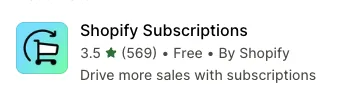
First, you need to install the official (and free) Shopify Subscriptions app. This acts as the bridge to display management widgets on your store's secure checkout and account pages.
- Search for: "Shopify Subscriptions" in the Shopify App Store and install it.
Step 2: Access the Theme Editor
Once the app is installed, you need to place the widgets within your theme.
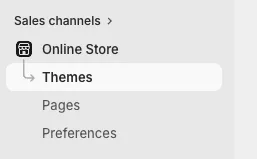
- Navigate to Online Store under the Sales Channels section in your Shopify Admin.
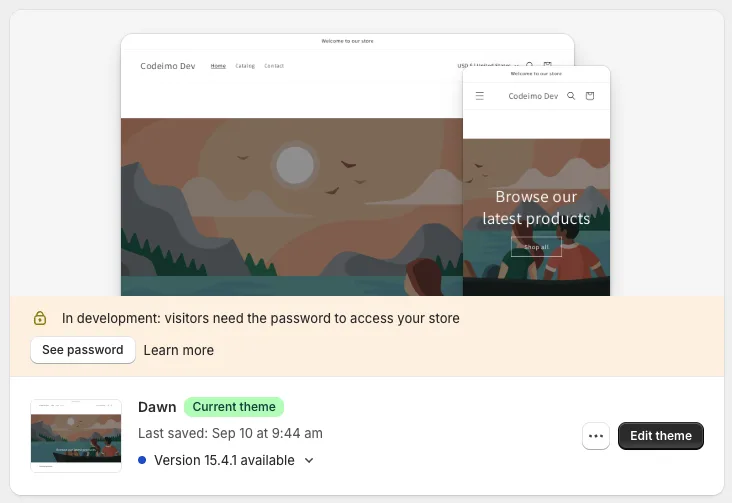
- Click the Customize (or Edit Theme) button for your active theme.
Step 3: Navigate to Customer Account Pages
To add the buttons, you must navigate to the specific pages where customers view their orders.
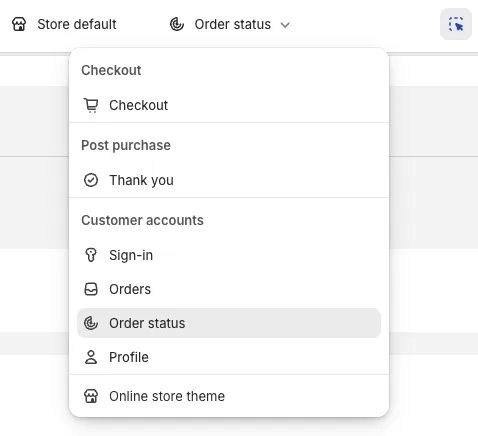
- At the top of the Theme Editor, click the Page Selector dropdown.
- Select Checkout and customer accounts.
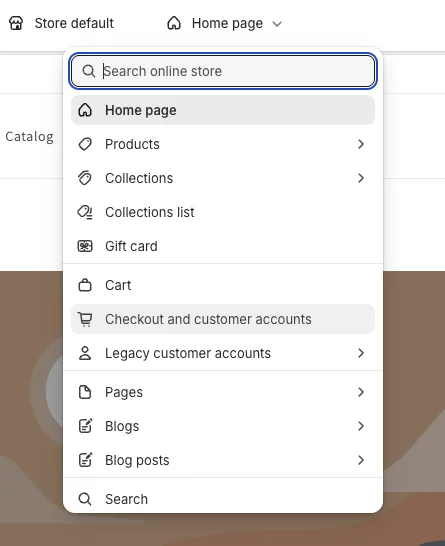
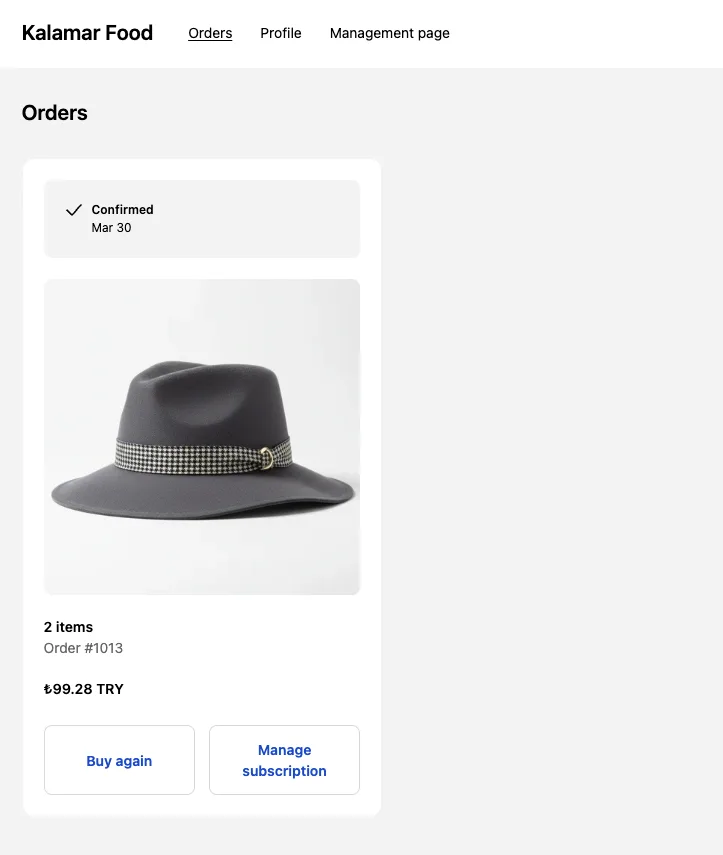
- Choose either Order status or Profile depending on where you want the "Manage Subscription" button to appear.
Step 4: Add the Subscription Widgets
Now, let's place the actual "Manage Subscription" blocks onto the page.
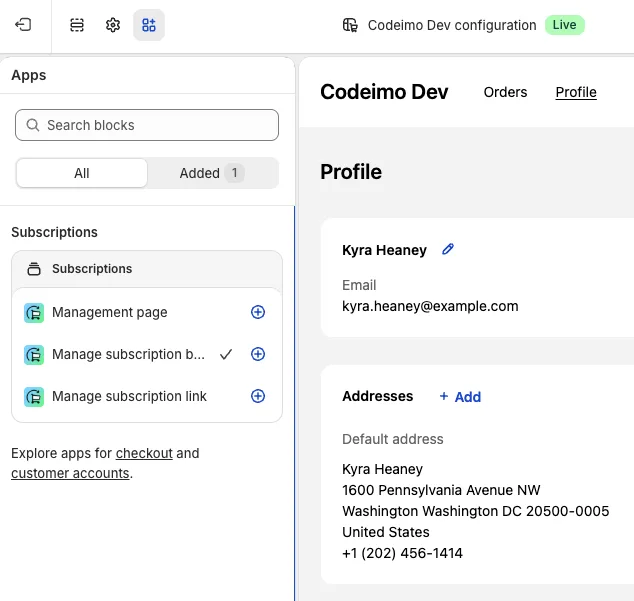
- Click the Apps icon (blocks icon) on the top left sidebar.
- Find the Subscriptions section.
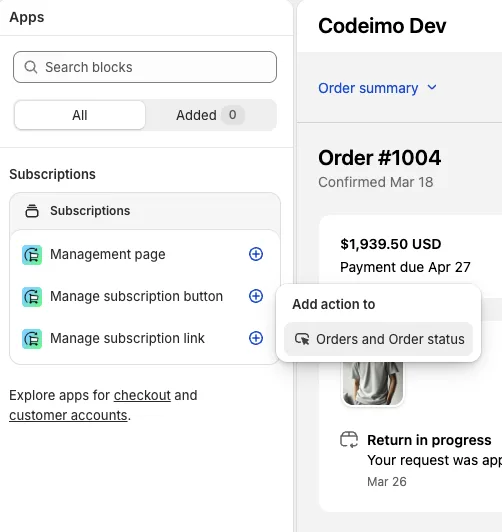
- Click the (+) icon next to Manage subscription button.
- When prompted, select Orders and Order status to confirm the placement.
Step 5: (Optional) Add a Dedicated Management Page
For a better user experience, you can add a dedicated subscription management link to your store's navigation.
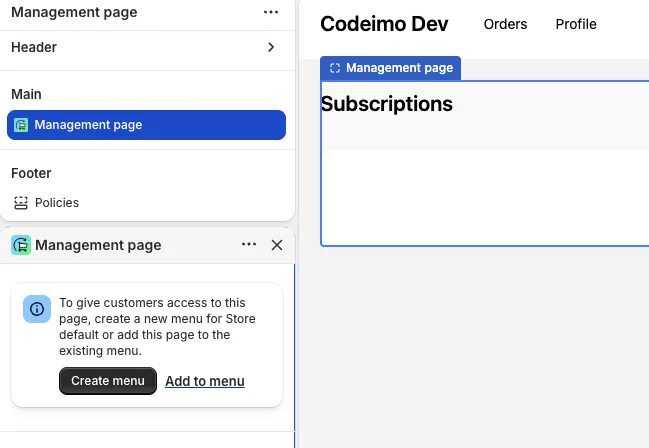
- In the same Apps menu, select Management page.
- Select Accounts to add it to the customer area.
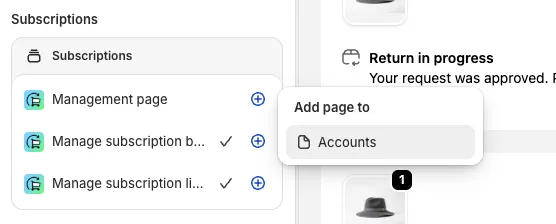
- Click Add to menu in the widget settings to automatically include a "Subscriptions" link in your header navigation.
Success!
Your customers can now view, update, or cancel their subscriptions directly from their account or order confirmation pages. This reduces support tickets and gives your customers full control over their recurring orders.
Need Help?
If you're still having trouble setting up subscription management widgets, please contact our support team via live chat in the app, and we'll be happy to assist.
Was this article helpful?
Still need help? Contact support