Free Gift with Purchase for Shopify
Sweeten any offer with a free gift. Attach gift products to your bundles and deals to lift conversion and order value without discounting your core products.
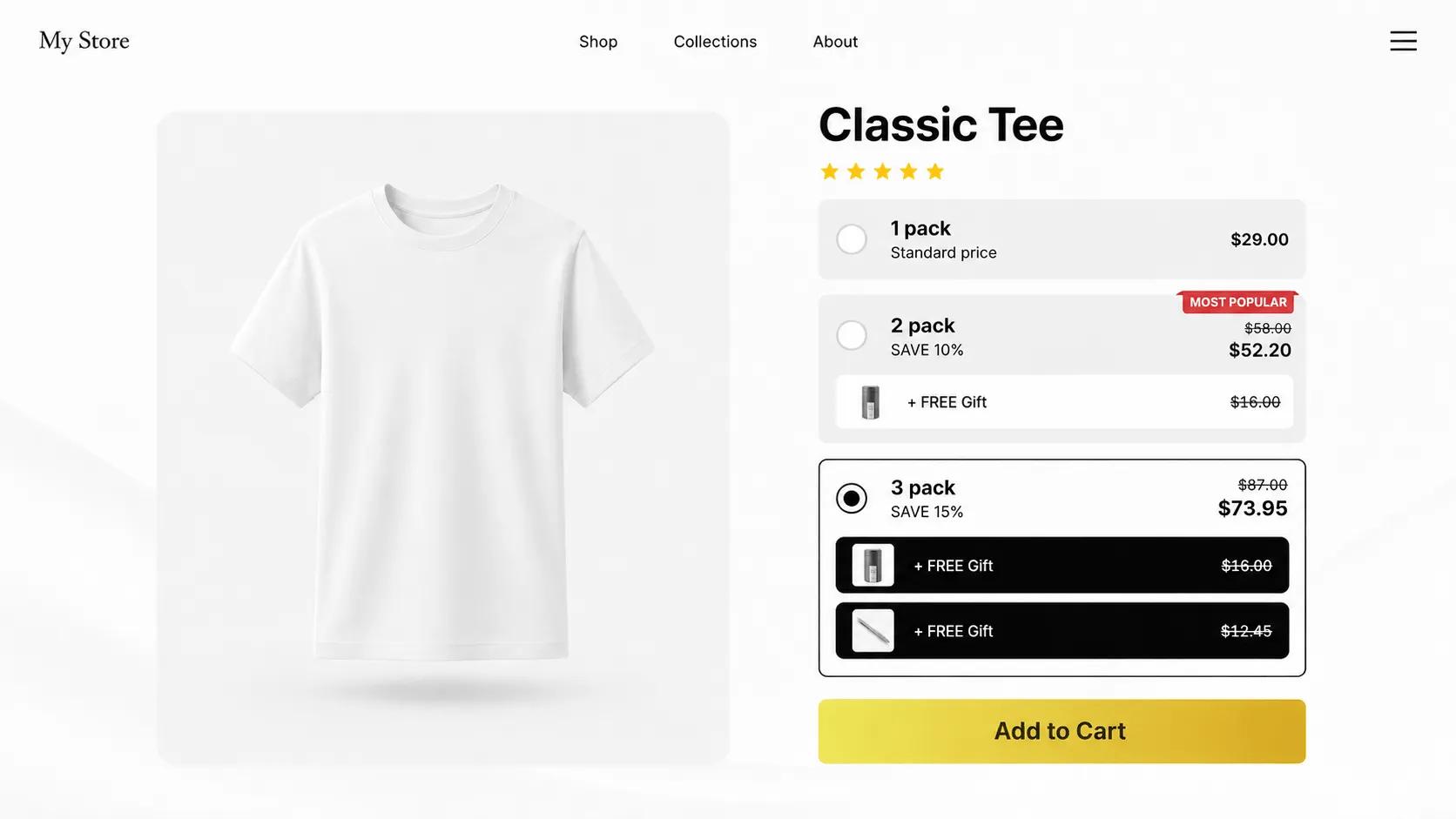
What is a free gift with purchase?
A free gift with purchase adds a bonus product to the order when the customer takes your offer. Unlike a discount, a gift protects the perceived value of your main products: the price stays intact, and the customer still gets a clearly better deal.
In V Bundles, you can attach free gift products to any bundle offer. The gift is displayed inside the widget so shoppers see what they are getting before they commit, and it rides along to checkout automatically once the offer conditions are met.
What you can do with Free Gift with Purchase
Gifts on any offer type
Add a free gift to fixed bundles, quantity breaks, mix-and-match offers, and BXGY deals alike.
Full-price protection
Reward the shopper without training them to wait for percentage discounts on your core products.
Visible before purchase
The gift appears in the offer widget with its own image and label, so it actively sells the deal.
Great for samples and slow movers
Use gifts to introduce new products, move excess inventory, or push carts past a value threshold.
How to set up Free Gift with Purchase in V Bundles
Watch two ways to add free gifts with V Bundles: unlock free shipping and a free product as shoppers choose higher bundle tiers, or attach one or more gift products directly to individual deals. Follow the setup, save your changes, and preview the offers on your store. Progressive Gifts requires a paid plan; gifts attached to core bundle deals are available on the Free plan.
- 1
Install V Bundles
Install V Bundles from the Shopify App Store and open it from your Shopify admin.
- 2
Create or open your bundle widget
From the dashboard, click Create widget, choose a color theme, and select Quantity Breaks to follow the tutorial, or open an existing widget. Set up your one-pack, two-pack, and three-pack deals. If you are switching from the progressive setup shown in the first part of the video, turn off Progressive Gifts in the Elements tab.
- 3
Add gifts to a specific deal
Go to the Deals tab and open the three-pack deal. Click Add free gift and select the product. Use Add another free gift to include a second product. These gifts are included only when that deal is selected.
- 4
Choose gifts for the other deals
Open the two-pack deal and add one free gift. Each deal can have its own gift combination: in the tutorial, the two-pack includes one gift and the three-pack includes two. The gifts appear inside each deal.
- 5
Save and test on your store
Click Save, then open the published widget with Preview on your store. Select each deal and add it to the cart to confirm that its qualifying gifts are added automatically. Check the gift products and their free pricing in the cart and checkout.
Step-by-step guides
Related features
All featuresProgressive Gifts
Add tiered free gifts and free shipping to your Shopify bundle offers, with rewards based on the selected offer.
Learn moreBuy X Get Y (BOGO)
Run buy one get one free and BOGO deals on Shopify, with free items shown in cart and checkout.
Learn moreProduct Add-ons
Sell product add-ons on Shopify: one-tick extras like gift wrap, warranties, and accessories.
Learn more