Progressive Gifts for Shopify
Give each bundle tier its own rewards. Offer product gifts, free shipping, or both, and show shoppers what is included with their selection before they add it to the cart.
What are progressive gifts?
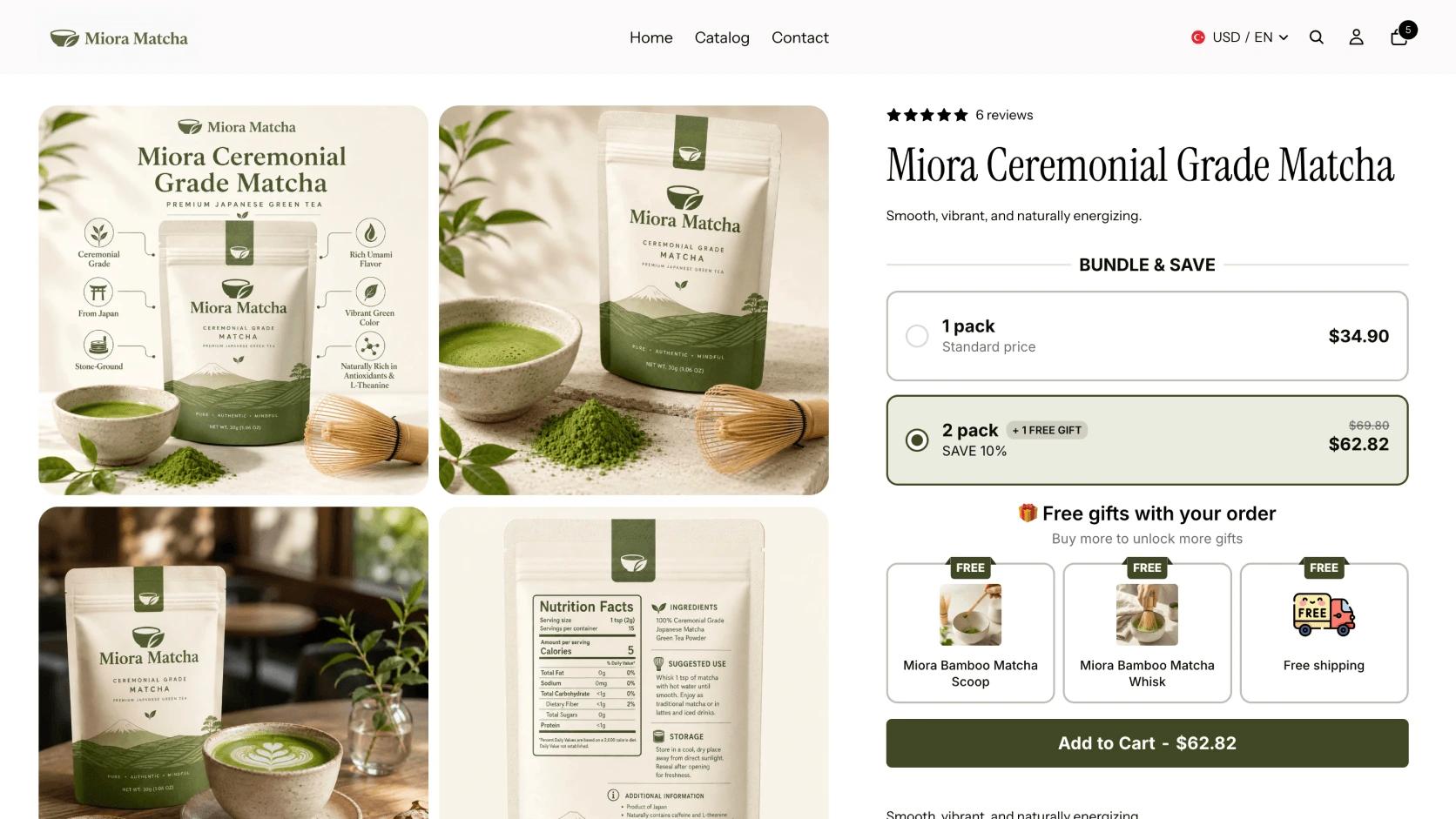
Progressive gifts are rewards linked to the offer tier a customer selects. In V Bundles, you can add product gifts and free shipping rewards below any bundle type, then choose which offers qualify for each reward. Quantity Breaks is just the example used in the video, not a requirement. Customers can compare the products, prices, and included gifts in one place.
For example, a matcha store could offer one pouch on its own, two pouches with a bamboo scoop, and a three-pouch offer with the scoop, a whisk, and free shipping. Set the scoop to apply from the second offer onward, then assign the whisk and shipping reward to the third. This is an example configuration; you choose your own products, quantities, and reward tiers.
Eligibility follows the selected offer in the widget. It is not a storewide cart-spend threshold: adding unrelated products to reach a dollar amount does not unlock a reward. Eligible product gifts are added with the bundle, and their free-gift discount is applied automatically.
What you can do with Progressive Gifts
Set rewards for one tier or several
Make a gift available on one specific offer, or on that offer and every higher tier. Use the second option when you want higher tiers to retain the gifts included in earlier offers.
Combine product gifts and free shipping
Choose gift products and quantities, then add free shipping as another reward. You can exclude shipping rates above a limit you set, so only eligible rates receive the shipping discount.
Show which rewards are included
Display eligible gifts alongside the selected offer. You can show rewards from other tiers as locked, choose whether their images and labels appear, or hide them until they qualify.
Include gifts with the bundle
Eligible product gifts join the bundle when the shopper adds it to the cart. Enable the gift variant selector when customers should choose an available option, such as a color or size.
Offer rewards for subscription purchases
Set individual rewards to apply only when the shopper selects a subscription purchase. You can use this option for a product gift, a free shipping reward, or both.
Match the reward display to your store
Choose a horizontal or vertical layout, edit headings and labels, and inherit your deal styling or customize the gift cards separately. You can configure up to 10 rewards in one widget.
How to set up Progressive Gifts in V Bundles
Watch two ways to add free gifts with V Bundles: unlock free shipping and a free product as shoppers choose higher bundle tiers, or attach one or more gift products directly to individual deals. Follow the setup, save your changes, and preview the offers on your store. Progressive Gifts requires a paid plan; gifts attached to core bundle deals are available on the Free plan.
- 1
Open V Bundles on a paid plan
Install V Bundles from the Shopify App Store, enable the app embed, and choose a paid plan. Progressive Gifts is included in all paid plans, starting at $9.99/month with a 7-day free trial.
- 2
Create or open a bundle
Open an existing bundle, or click Create widget and choose the template that fits your offer. Progressive Gifts works below any bundle type. The video uses Quantity Breaks with the Matcha theme as an example: it adds a three-pack to the one-pack and two-pack options, removes the template gift from the second deal, and adds a Best Value badge to the three-pack.
- 3
Enable Progressive Gifts and add rewards
Open the Elements tab and enable Progressive Gifts to add a separate reward section below the bundle deals. Click Add gift, choose Free gift, and select the product. V Bundles automatically applies a 100% discount to the gift. Optionally enable the confetti effect, then add a second reward and choose Free shipping.
- 4
Set the unlocking tiers and reward order
Choose the qualifying deal and whether each reward also applies to higher tiers. To follow the video example, set free shipping to unlock at Deal Number Two and higher, and the free product at Deal Number Three and higher. Drag and drop the rewards to place free shipping first and the free product second. This gives the two-pack free shipping and the three-pack both rewards.
- 5
Preview each reward unlocking
Preview the rewards with each of your deals selected. In the video example, select the first deal: both rewards are locked. Select the second to unlock free shipping, then the third to unlock the free product too. With confetti enabled, unlocking a reward triggers the effect. Click a locked reward to check that V Bundles automatically selects the bundle tier needed to unlock it.
- 6
Save and preview on your store
Click Save. After the bundle is published, select Preview on your store. On the product page, confirm that the rewards appear below your bundle options and unlock for the deals you configured. Add each offer to the cart and check the gift products, free pricing, and eligible shipping discounts at checkout.
Step-by-step guides
Related features
All featuresFree Gift with Purchase
Offer a free gift with purchase on Shopify: attach gift products to any offer without cutting prices.
Learn moreQuantity Breaks
Add quantity breaks to any Shopify product: tiered discounts like "buy 2, get 15% off" on the product page.
Learn moreSubscription Bundles
Sell subscription bundles on Shopify with subscribe-and-save pricing, powered by Shopify's native selling plans.
Learn more