Countdown Timer for Shopify
Show the time remaining until a date you choose, right inside your bundle widget. Set the end time, customize the display, and choose what shoppers see when the countdown ends.
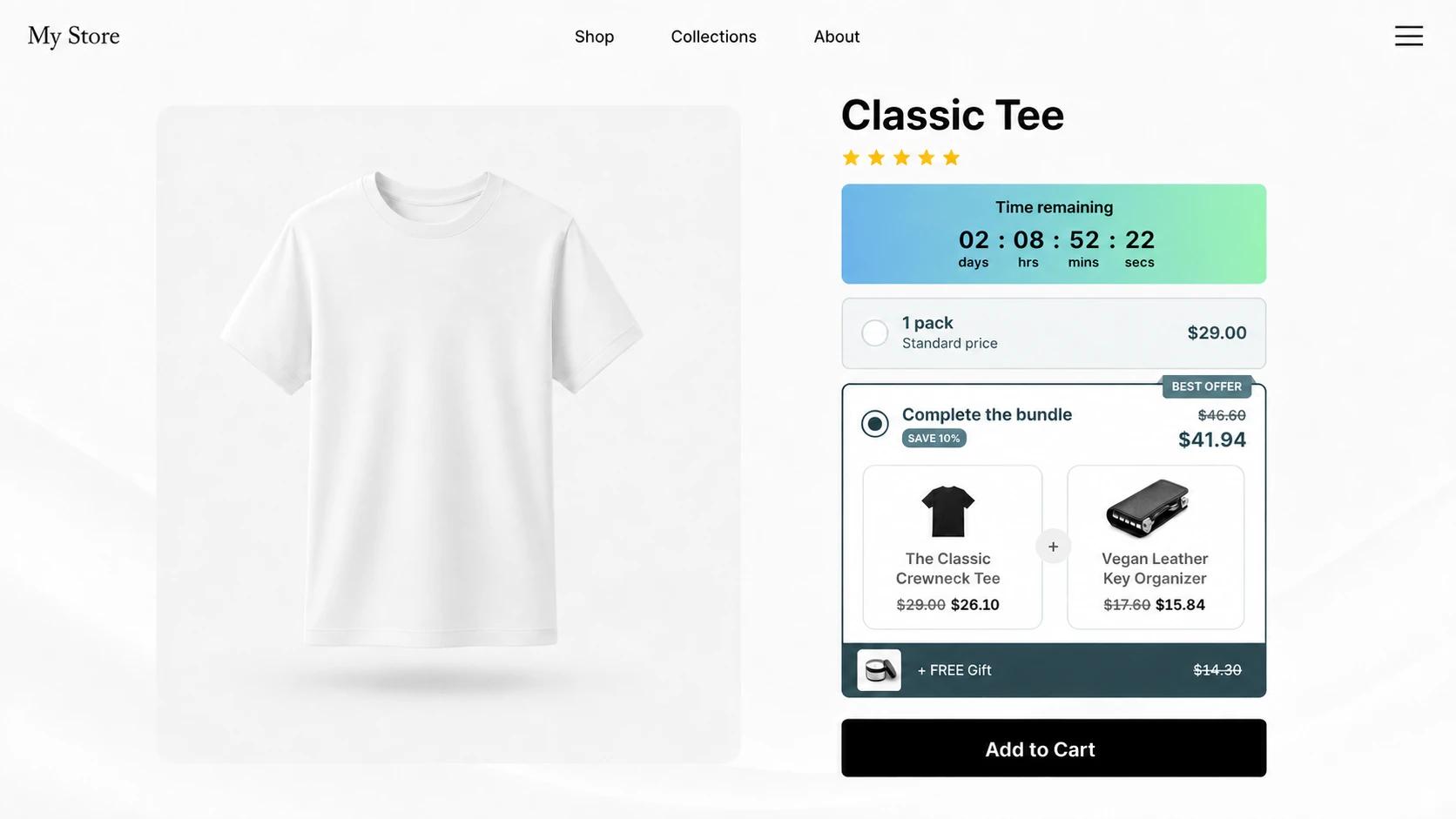
What is a countdown timer?
A countdown timer shows the days, hours, minutes, and seconds remaining until a selected date and time. In V Bundles, it appears inside the Deals Block widget alongside your bundle offers. Every visitor sees a countdown to the same moment.
You choose what appears when the selected date and time are reached: hide the timer, hide the bundle widget, or display a message. Manage promotion start and end dates in widget Settings, and use the same end date for the countdown.
What you can do with Countdown Timer
One end time for every visitor
Choose a calendar date and time. The countdown uses the saved widget time zone and keeps the same target across visits and page refreshes.
Labels and layouts that fit your store
Customize the day, hour, minute, and second labels, add a separator, or use a boxed layout with each number above its label.
Customizable design
Adjust colors, borders, spacing, and typography to match your bundle widget. Style the timer numbers independently of the surrounding text.
Choose what happens at zero
Choose the display at the selected end time: hide the timer, hide the bundle widget, or show a message you write.
How to set up Countdown Timer in V Bundles
- 1
Upgrade to a paid plan
The countdown timer is a premium element, available on paid plans starting at $9.99/month with a 7-day free trial.
- 2
Open your Deals Block widget
In V Bundles, open the widget you want to add the countdown to and go to the Elements tab.
- 3
Enable the countdown timer
Turn on Countdown Timer and choose its end date and time. Use a date that matches the event or promotion described in your timer text.
- 4
Style the timer
Edit the countdown text and unit labels, choose your layout, and adjust the colors and typography in Customize style.
- 5
Choose the end action and publish
Choose whether to hide the timer, hide the widget, or show an end message. For scheduled promotions, use the same end date in widget Settings and in the countdown. Save, publish, and check the dates and display on your storefront.
Step-by-step guides
Related features
All featuresBuy X Get Y (BOGO)
Run buy one get one free and BOGO deals on Shopify, with free items shown in cart and checkout.
Learn moreSticky Add to Cart
Add a sticky add-to-cart button to Shopify product pages that opens your bundle deals in a popup.
Learn moreFree Gift with Purchase
Offer a free gift with purchase on Shopify: attach gift products to any offer without cutting prices.
Learn more