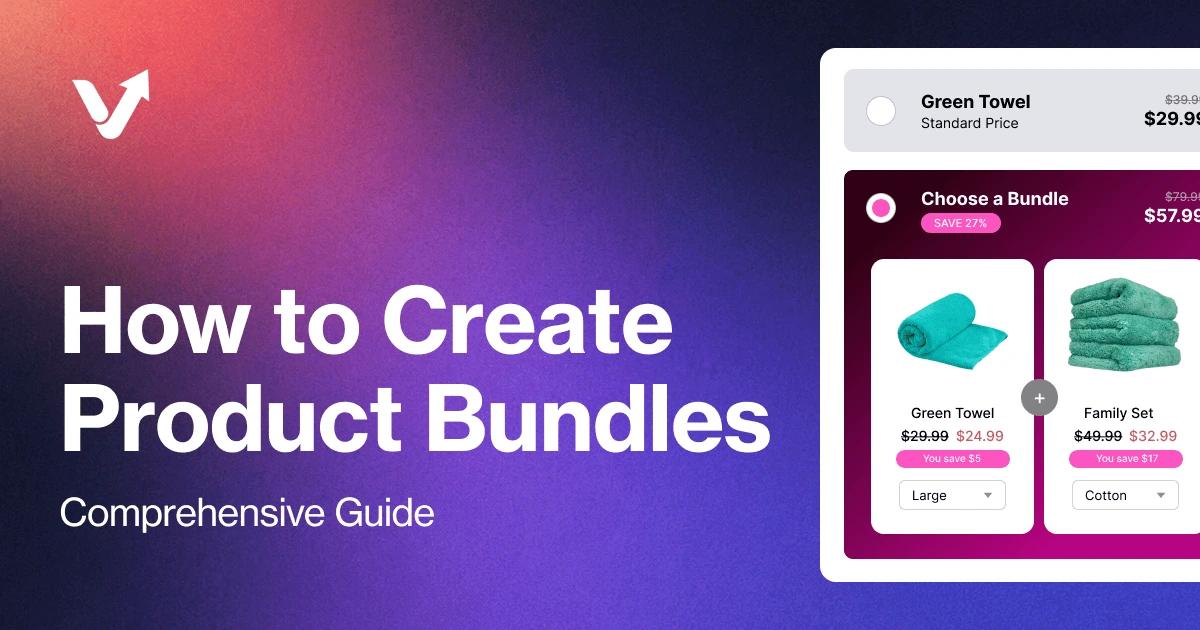
To create bundles on Shopify, start with the free Shopify Bundles app if you want a fixed set or multipack with automatic component stock tracking. You can also sell a manually stocked kit as a regular product, or use a dedicated app to display bundle offers on existing product pages.
The choice changes what you manage in your catalog and what shoppers see. This guide walks through each method, then covers the checks to make before taking orders.
What are Shopify product bundles?
A product bundle groups items into one offer. A skincare routine might include a cleanser, toner, and moisturizer; a multipack might contain three units of the same cleanser. A discount is optional. The convenience of choosing a complete set can be enough reason to buy it.
Bundles can help increase average order value, but a larger basket is only useful if the order still earns enough margin. Start with products that belong together and a price you can afford to offer.
Which bundle method should you use?
| Method | Best fit | What the customer sees | Inventory | Cost |
|---|---|---|---|---|
| Shopify Bundles | Fixed sets and multipacks | A separate bundle product listing | Automatic component tracking, subject to stock settings | Free app |
| Manual product set | Pre-packed kits with stock allocated separately | A regular product listing for the kit | Independent kit stock; no component link | No bundle app fee |
| V Bundles | Offers on existing product pages, including customer choice and quantity breaks | A bundle widget using existing catalog products | Uses the selected catalog products and their stock settings | Free plan available; see current pricing |
If you need a separate product page for a shampoo-and-conditioner set, Shopify Bundles is a straightforward starting point. If shoppers should add a matching conditioner while viewing the shampoo, consider a product-page offer. Use the manual route when you can keep the physical kits and their stock records separate from individually sold products.
Method 1: Create a bundle with the free Shopify Bundles app
Shopify Bundles creates fixed bundles and multipacks. It tracks the products inside each bundle, so you do not need a paid app just to sync component inventory.
- Install Shopify Bundles and make sure the products and variants you want to include already exist in your catalog.
- Open Apps > Bundles, click Create bundle, and enter a title.
- Click Select products, choose the items, and set their quantities and included variants.
- Click Save and continue. Add the bundle price, description, and images on its product page.
- Set the product to Active, check that Online Store is selected in its publishing settings, and save. A newly created bundle starts as a draft.
- Open the storefront product page. Select the variants, add the bundle to your cart, and check the items, quantities, and total before promoting it.
For a multipack, use Duplicate product in the product menu inside the bundle editor and configure the quantities and options. See Shopify's setup instructions for the current admin flow.
Example: price and stock for a skincare set
This is an illustrative calculation, not a customer result. Suppose a cleanser costs $20, a toner $15, and a moisturizer $25 at their individual retail prices. Their combined price is $60. A $54 set saves the shopper $6, or 10%. Check your costs before choosing that discount; 10% is an example, not a target for every store.
If the three products have 12, 8, and 10 units available, a set containing one of each has enough stock for eight complete bundles. With two cleansers per set, the same stock supports six bundles.
Shopify calculates availability from tracked component stock and required quantities. Items with tracking disabled or Continue selling when out of stock enabled are excluded from that calculation. Check those settings before relying on the displayed bundle quantity. Shopify explains the inventory rules here.
What the free app does and where you need another approach
Shopify Bundles supports fixed sets and multipacks, rather than a mix-and-match builder. Shopify's bundle compatibility rules also exclude purchase options such as subscriptions. Check the specific integration if recurring orders are part of your plan.
A bundle's price needs attention too: changing a component's price does not automatically reprice the bundle. Review the set price when your catalog prices change.
Method 2: Create a manual product set without an app
You can sell a pre-packed kit by adding it as a regular Shopify product. This creates an independent stock record for the kit. It does not create the component relationships used by Shopify Bundles.
For the skincare example, you could physically pack five kits, allocate five units of each item to those kits, and list five kits for sale. The individual product stock must reflect that allocation, so those same units cannot also be sold separately.
- In Products, choose Add product and name the set, such as "Daily Skincare Kit."
- Describe the exact contents, including sizes and quantities, and add a photo of the whole set.
- Assign the kit its own SKU, price, shipping weight, and available quantity.
- Allocate the physical items to the kits and update the individually available component stock once for that allocation. Keep a record so returns or unpacked kits can be reconciled later.
- Make the product Active, publish it to Online Store, and save.
- Check the product page and cart. A sale deducts the kit's stock; it does not also deduct stock from the separate component listings.
Use this approach only while you can maintain that stock separation. If you assemble sets on demand from the same stock sold individually, automatic component tracking is usually easier to manage. Do not both allocate component stock when packing and deduct it again when the kit sells.
Method 3: Add a bundle offer with V Bundles
We build V Bundles. This walkthrough uses its Complete the Bundle template to put a fixed offer on an existing product page. It uses your catalog products and does not create a separate bundle product listing.
The video below shows the setup. You can also follow the written steps without watching it.
- Install V Bundles. Follow the setup guide to enable the app embed in your theme, save, and return to the app.
- Click Create widget and choose Complete the Bundle.
- In Deals, open the offer. For each additional product slot, choose Fixed product, click Select product, and pick the item or variant. In the skincare example, add the toner and moisturizer alongside the cleanser.
- Set the quantities and discounts. If you use the example's 10% discount on all three products, check that the total is $54. You can also use a custom bundle price where appropriate.
- Check the preview, offer text, and product-page targeting. Save your changes and click Publish.
- Visit a targeted product page on your published theme. Select the offer and add it to the cart. Confirm that the correct variants, quantities, and discount carry through to checkout.
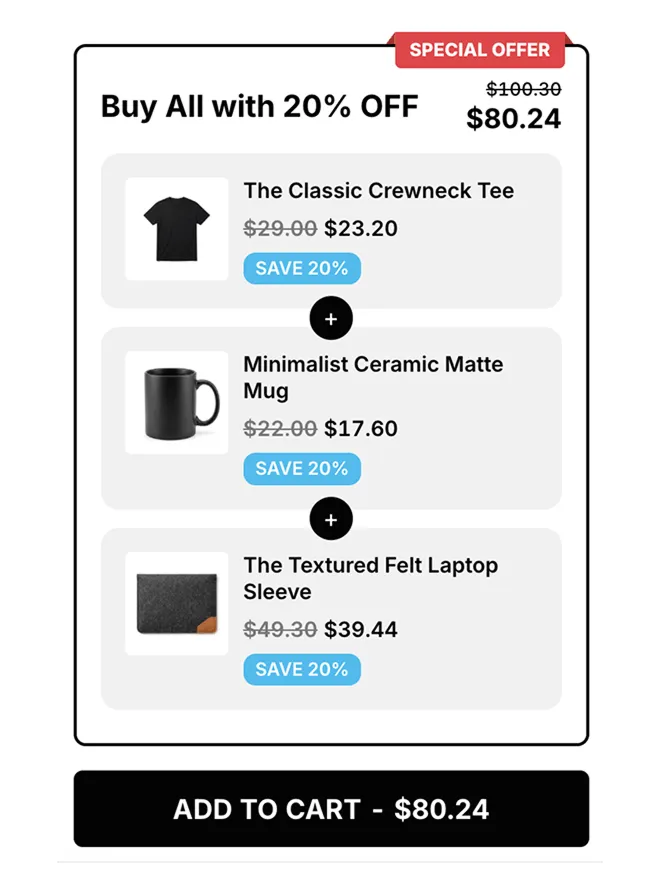
The fixed bundles walkthrough explains this template in more detail. For customer-selected items, see mix-and-match bundles. Optional extras shown in the video, such as gifts or a countdown timer, are not needed to publish your first fixed offer; check their plan requirements before using them.
Check your bundle before taking orders
A saved offer still needs a storefront check. Run through the complete buying path, especially if you use a custom theme, cart drawer, or other discount apps.
- On desktop and mobile, check that the contents, variant choices, and total price are readable.
- Add the offer to the cart. Check that every item appears in the intended quantity, with no duplicate additions.
- Continue to checkout and confirm the discount, shipping, and final total. Try any discount codes you expect customers to combine with it.
- In a test store, place a test order and check how the order records its products and affects stock. For manual kits, check the kit stock; for component-based offers, check the included products.
- Test an unavailable variant or out-of-stock item in a test store. Confirm that the behavior matches your inventory settings.
Use a photo that shows everything included in the offer. If there is a discount, state the saving clearly. After launch, compare conversion rate and contribution per order alongside AOV; extra revenue can be offset by a discount or higher fulfillment costs. Our bundle pricing guide covers that decision in more detail.
Common bundle setup problems
| Problem | What to check |
|---|---|
| Shopify bundle is missing from the storefront | Check Active status, Online Store availability, and component stock. Saving a draft alone does not publish it. |
| Bundle keeps returning to Draft | A linked variant or option may have been deleted or renamed. Reopen the bundle in Shopify Bundles and review its components before saving again. |
| V Bundles widget does not appear | Check the app embed in the published theme, widget publication, and product targeting. |
| Discount is missing or unexpected | Review eligibility and discount combinations. For a Shopify discount targeting a Shopify Bundles product, include the parent bundle product rather than only its components. |
| Bundle stock differs from your estimate | Check required quantities and inventory settings on each component. For a manual kit, reconcile allocated kit stock separately. |
| Price is out of date | Recheck the offer after catalog price changes; Shopify Bundles does not automatically recalculate its price from component prices. |
Shopify documents its discount and Draft-status behavior. If you are choosing a different app, compare its inventory, theme, and subscription compatibility before moving your offers. Our Shopify bundle app comparison can help narrow the options.
Other bundle offers to try
Once a fixed offer works through checkout, choose the next format based on what shoppers need.
Quantity breaks and volume discounts
Offer a lower unit price when someone buys more, such as two bags of coffee at 10% off or four at 15% off. Those percentages are examples; calculate the remaining margin first. See the quantity breaks guide for tier planning and volume discounts for the product setup.
Mix-and-match bundles
Let customers choose items from a selection you define, such as any three T-shirts for one price. Explain how many items they must pick and which products qualify. Test the selections and variants in the cart as well as in the widget.
BOGO and free gifts
Shopify's built-in Buy X get Y discount can handle a basic BOGO promotion without a bundle app. Create the offer under Discounts > Create discount > Buy X get Y and set the qualifying and discounted products. Customers must add both items themselves; Shopify does not automatically add the gift. See Shopify's Buy X get Y guide.
If you need a visible offer or automatic gift addition, compare Buy X get Y offers and free gifts with purchase. Those display and automation features are separate from the underlying discount rule. For seasonal examples, see our Black Friday bundle ideas.
Frequently bought together
Offer a relevant add-on while the customer is choosing a product, such as filters with a coffee maker. Keep the choice optional and measure whether the extra items earn enough margin. Frequently bought together offers explain the product-page setup.
Publish one offer, then check the results
Start with a small set whose products belong together. Choose Shopify Bundles for a separate fixed bundle listing, a manual product for separately stocked kits, or V Bundles for an offer on existing product pages. Check the cart, checkout, and stock behavior before sending traffic to it.